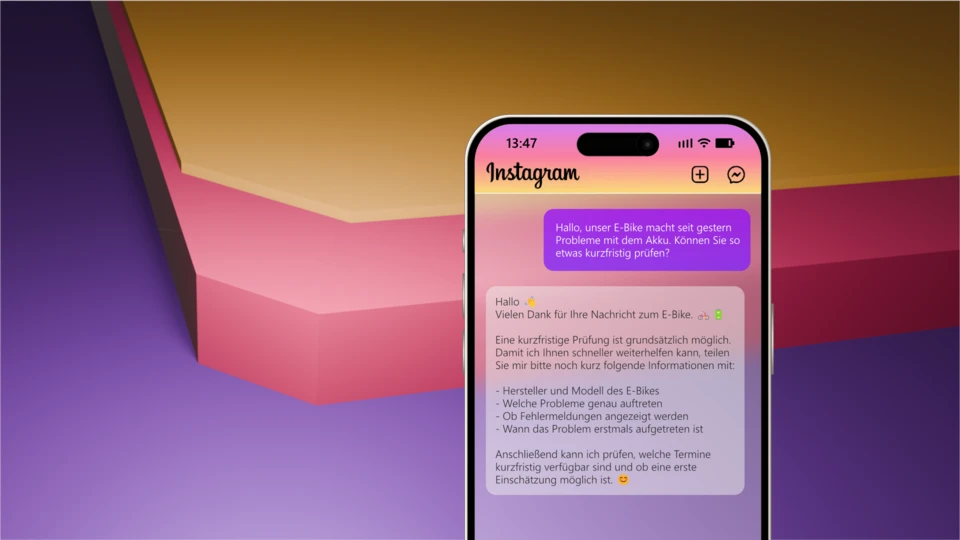
All Instagram messages from your customers flow centrally into Microsoft Teams. Your team sees and processes the requests like normal Teams chats, without a separate Instagram account or additional software. Everything stays in one system, the overview is maintained and nobody has to switch between apps.
A hot lead in the website chat—and then suddenly gone?
WebChat identifies hot leads and routes them to the right Microsoft Teams team in real time
Hot lead in the website chat — then suddenly gone?
Instead of a lead form and chasing calls: the visitor writes in the website chat — and WebChat detects hot leads, flags them and brings them in real time to the right Microsoft Teams team. Your sales team interacts instantly, right in the conversation.
Hot lead
Website widget
Sales
Real-time routing
Speed wins — that's why every sales team needs it
78 %
of customers buy from the provider that responds first.
21×
higher qualification when replying in 5 instead of 30 minutes.
35–50 %
of deals go to the first responder.
47 Std
is the average company's response time — that's your opportunity.
Sources: Lead Response Management Study (MIT/InsideSales.com, Dr. James Oldroyd); Harvard Business Review “The Short Life of Online Sales Leads”; Lead Connect. Figures vary by industry and lead source.
Instant · no IT
Reply straight from Microsoft Teams
Install WebChat from the Microsoft Teams app area and embed a short website snippet — done. Hot leads appear in the Teams channel, your sales team replies with “@WebChat …”. Ready in minutes, no IT project, no SaaS contract.
Optional extension
AI chatbot & automatic lead detection
If you also want the AI chatbot with automatic hot-lead detection and CRM handover, add Microsoft Foundry and Power Automate — a one-time setup. The instant variant also works entirely without it.
Lead fizzles in a shared inbox — or rings through to sales
Today · too late
- ✕The chat request lands in a shared inbox nobody actively checks.
- ✕No one is clearly responsible — the hot lead waits until it drops off.
- ✕By the time you reply, the prospect has long since bought from a competitor.
With WebChat
- ✓Buying signals are detected and the request is flagged as a hot lead.
- ✓The lead lands in the sales channel in real time — with an @-notification.
- ✓A human takes over instantly — history and context stay in your tenant.
From buying signal to sales channel — in seconds
 Website chatBuying interest
 WebChatHot-lead detection
 Microsoft TeamsSales channel
 Power Automateinto the CRM


Routing
into your Microsoft Teams channel
WebChat detects the buying signal, marks the lead as “Hot” and mentions the sales team (@Sales) in the channel. The AI chatbot answered the first questions automatically — a human disables the bot with one click and takes over straight from Microsoft Teams.
Whoever replies first wins — clear prioritization for your sales team
In B2B sales, response time decides: whoever reacts first to a purchase-ready request wins the deal far more often. Yet most chat requests are routine — tying up exactly the time the hot lead needs.
This is exactly where WebChat creates clear prioritization: an AI chatbot based on a Microsoft Foundry agent answers standard questions automatically — with your knowledge from CRM, price list and knowledge base. But the moment buying interest appears, the sales team is informed instantly in the Microsoft Teams channel and takes over the conversation seamlessly — with full context, without the customer having to repeat anything.

The agent knows your answers
The AI chatbot (Microsoft Foundry) answers standard questions around the clock — with your knowledge from CRM, price list and knowledge base.
Buying signal = instant alert
When a visitor shows buying interest, WebChat marks the lead as “Hot” and mentions the sales team directly in the Microsoft Teams channel.
Seamless handover
One click disables the bot, the account manager takes over with the full conversation history — the customer doesn't have to repeat anything.
A specialized agent per inbound channel — under your control
Each inbound channel gets its own AI agent with the right knowledge and tone — website widget, WhatsApp or Instagram. Every bot reply stays under controlled supervision: you see everything in the Microsoft Teams channel, step in anytime or disable the bot. The agent takes the basic questions off your hands — and is ready for your revenue.
Website widgetSales agent
monitored in Teams WhatsApp
Support agent
monitored in Teams Instagram
Marketing agent
monitored in TeamsEnrich the conversation with data from your systems
As soon as a lead lands in the Teams channel, WebChat enriches the conversation via Power Automate with data from your systems — CRM, ticketing, ERP. Sales sees status, revenue potential and history at a glance and starts the next action with one click: create a ticket, open an opportunity or save a new contact.
Adaptive Card in the Teams channel: lead context from CRM, tickets and other systems — with one-click actions right in the conversation.
No lead is left behind anymore
01
Hot-lead detection
Buying interest in the website chat is detected and clearly flagged — no hot lead slips through.
02
Instantly with sales
The lead lands in real time in the right Teams channel — with an @-mention to the right agent.
03
Straight into the CRM
Power Automate creates the lead with its history in the CRM — cleanly documented, nothing gets lost.
Embed. Detect. Close.
- 1Add WebChat directly in Microsoft TeamsAdd it to the sales channel from the Microsoft Teams app area.
- 2Embed the website widget and define hot-lead signals
- 3Routing to sales + optional CRM via Power Automate
- 4Reply instantly with “@WebChat …” and close
!
Prerequisite
Pay per Channel covers the WebChat license. Automatic CRM handover and AI pre-qualification additionally need Power Automate Premium and Azure pay-as-you-go.
FAQ & troubleshooting
How does WebChat detect a hot lead?
Through definable signals in the chat — such as purchase intent, quantities or urgency. With your own AI in the tenant, pre-qualification can additionally be automated.
What happens when no one in sales is online?
The lead stays visible in the channel — with cover rules and @-mention. Optionally, your own AI holds the conversation until a human takes over.
Does the lead land in the CRM automatically?
Yes — via Power Automate the lead and its history are written to your CRM or systems. Adaptive Cards show live data right in the chat.
What does WebChat cost?
Pay per Channel: you pay per Microsoft Teams channel, not per user — unlimited agents per channel. Billed through Microsoft. Terms at webch.at/pricing.
your chat, your team, your decision
Free 7-day POC with 25 channels — no SaaS contract. From the Microsoft Marketplace.