Microsoft Power Platform
Home / Microsoft Power Platform
Power Platform, WebChat and Copilot
Enquiry in, process on.
WebChat becomes the process chatbot.Power Automate connects. Copilot is informed. WebChat takes in the website, Teams and further inbound channels and triggers the next steps.
Inbound channels
Website, Teams and further channels take in the enquiry.
Power Automate
Connects CRM, tickets and specialist systems.
Foundry
Provides the tools: check, classify, trigger the next step.
Adaptive Card
The human decides: verification, hot lead, approval, escalation.
Teams and Copilot
The conversation stays in Teams, Copilot knows the status.
The core
WebChat is not just a window.
With the inbound channels, it becomes the company's process chatbot.
- 01Power Automate connects the systems.
- 02Foundry delivers the tools.
- 03Adaptive Cards bring people into the process.
- 04Teams What is decided, checked or escalated lands in Teams. Copilot stays informed.
In short
Four steps from first contact to process
In via WebChat
WebChat plus inbound channels becomes the company's process chatbot.
Connect with Power Automate
Power Automate connects systems, tickets and specialist processes.
Decide via Adaptive Card
Adaptive Cards for verification, hot lead, approval and escalation.
Copilot reads along
What lands in Teams stays available to Copilot.
Adaptive Card workflows
Where a human has to decide, Power Automate delivers an Adaptive Card
Verification, hot lead, approval and escalation land directly in the Teams thread.
Verification
Hot lead
Approval
Escalation
Illustrative example of the Adaptive Cards.
Processes in the company
Every process can be built in
From first contact to handover.
First contact
The enquiry arrives via website, Teams or further inbound channels.
Verify
Check first, then provide information.
Classify
Recognise a purchase signal or request, create a lead or ticket.
Decide
Approve or escalate via Adaptive Card.
Hand over
The team takes over in Teams, Copilot knows the status.
Connectors
The Power Platform comes with over 1,000 connectors
A connector links Power Automate with systems and services already in use in your company. Selection and sign-in are usually enough for the connection.
Examples
Connectors in use: examples from customer chat
A selection of systems that can be connected, and their benefit in customer chat.
FunctionReads and creates customers, contacts and leads.
Use caseA prospect gives team size and start date, the lead is created in the CRM and sales is informed.
FunctionRetrieves contacts, leads and opportunities.
Use caseAn existing customer writes, and their data appears as an Adaptive Card in the thread.
FunctionReads and updates contacts and deals.
Use caseA new enquiry is automatically created as a contact.
FunctionCreates and updates deals.
Use caseA price enquiry directly becomes a deal in the pipeline.
FunctionReads and creates leads.
Use caseContact details from the chat land in the CRM without retyping.
FunctionReads and updates customer data.
Use caseWhen replying, the team immediately sees who is writing.
FunctionCreates contacts and projects.
Use caseA project enquiry is recorded directly as an opportunity.
FunctionReads and creates contacts.
Use caseNew prospects are automatically captured and assigned.
FunctionCreates and updates tickets.
Use caseA maintenance request becomes a ticket with the complete chat history.
FunctionCreates tickets and reads the status.
Use case“What is the status?” The status appears directly in the chat.
FunctionCreates IT requests.
Use caseAn employee reports an issue, and the IT team receives it immediately.
FunctionReads and creates cases.
Use caseA service request lands in the right area, without manual forwarding.
FunctionCreates issues.
Use caseA customer requests a change, and the development team receives the issue.
FunctionCreates work items.
Use caseA feature request from the chat lands directly in the backlog.
FunctionCreates and reads cases.
Use caseCustomer service sees the customer's open cases directly in the thread.
FunctionShows free appointments and books.
Use caseThe customer chooses a consultation appointment in the chat and receives the confirmation.
FunctionReads calendars and sends invitations.
Use caseA callback request lands in the calendar of the responsible person.
FunctionShares booking links and reports bookings.
Use caseAfter the booking, a notification appears in Teams.
FunctionReads and creates appointments.
Use caseTeams with Google Calendar can also assign appointments directly from the chat.
FunctionBooks and reschedules appointments.
Use caseA customer reschedules their appointment themselves in the chat.
FunctionReads orders and delivery status.
Use case“Where is my order?” The status appears as an Adaptive Card.
FunctionReads items, prices and stock levels.
Use caseA retailer asks about availability, and the team sees the stock in the thread.
FunctionReads orders and invoices.
Use caseA customer asks about an invoice, and the team has it to hand immediately.
FunctionReads orders and products.
Use caseA customer asks about shipping and gets the information in the chat.
FunctionReads orders and customers.
Use caseOrder data appears directly in the thread when replying.
FunctionReads your own databases.
Use caseData from your own systems can also be queried in the chat.
FunctionAdds contacts to lists.
Use caseA customer wants the newsletter, and the entry runs with double opt-in.
FunctionManages contacts and campaigns.
Use caseAn enquiry from a campaign lands in the right segment.
FunctionCreates contacts and starts automations.
Use caseAfter the chat, the appropriate follow-up sequence starts automatically.
FunctionEnriches customer profiles.
Use caseInterests from the chat flow into the profile for the next campaign.
FunctionCreates and scores leads.
Use caseLeads from the chat go directly into lead scoring.
FunctionAdds subscribers.
Use caseA sign-up in the chat lands directly in the right list.
FunctionManages contact lists.
Use caseEvent prospects are automatically added to the invitation list.
FunctionCreates applications.
Use caseA female applicant asks about a position, and her data lands in Personio as an application.
FunctionReads open positions.
Use case“Are you looking for someone in sales?” The current vacancies appear in the chat.
FunctionReads the application status.
Use caseAn applicant asks about the status and gets an up-to-date answer.
FunctionReads employee and applicant data.
Use caseThe chat answers onboarding questions with the right information.
FunctionReads documents and lists.
Use caseA customer asks for a data sheet, and the PDF comes directly into the chat.
FunctionSaves and shares files.
Use caseFiles from the chat are automatically stored in the right folder.
FunctionWrites and reads spreadsheets.
Use caseEvery enquiry is recorded automatically in a list.
FunctionCreates documents from templates.
Use caseA pre-filled quote is created automatically from the chat details.
FunctionCreates tasks.
Use caseAn enquiry becomes a task for the responsible team.
FunctionStarts approvals.
Use caseA special request goes for approval, and the answer comes back into the chat.
FunctionReads form responses.
Use caseDetails from a form are already available in the chat.
FunctionSends documents for signature.
Use caseThe customer agrees, and the contract is sent for digital signature.
FunctionSends documents for signature.
Use caseOrder confirmations are signed directly from the chat.
FunctionSave and share files.
Use caseEven outside Microsoft 365, files end up in the right place.
This is a selection. Microsoft shows which connectors exist in the connector directory. Some of them are premium connectors and require a suitable Power Automate licence.
What lands in Teams stays available to Copilot
Summarise, follow up, hand over, without copying the chat. What Copilot can use depends on the integration and permissions.
Price enquiry for around 30 channels, handed over to sales as a hot lead, takeover confirmed.
How many colleagues should join the chat?
Handover to @Sales prepared with the conversation history.
Next steps
How your journey continues
From the building blocks through further inbound channels to getting started.
Building blocks


Inbound channels




Good to know
Questions about the Power Platform
What is a process chatbot?
WebChat takes in enquiries via inbound channels and triggers the next steps with Power Automate. Decisions run via Adaptive Card in Teams.
What is Foundry needed for?
Foundry provides the tools with which the bot checks, classifies and triggers the next step.
Does a human always have to decide?
Only where a human has to decide. Then Power Automate delivers an Adaptive Card, for example for verification, hot lead, approval or escalation.
Which systems can be connected?
What the company already uses: over 1,000 connectors link CRM, tickets and specialist systems. Some of them are premium connectors and require a suitable Power Automate licence.
Does WebChat operate the AI?
No. The agent belongs to the company and runs in its own Microsoft environment.
Can a human take over?
Yes, at any time. The chatbot can be deactivated per conversation.
Enquiry in, process on.
WebChat becomes the process chatbot. Power Automate connects. Copilot is informed.

AdaptiveCard
Support your teams with information from your systems.


In the Power Platform tab, enter a corresponding keyword that should trigger a workflow for this channel.

Create a flow in Power Automate that reacts to a keyword intention.

Support your team with workflows that simplify your work.

Try without subscription
Add WebChat to channel - activate
Test 7 days with up to 25 channels (POC license)
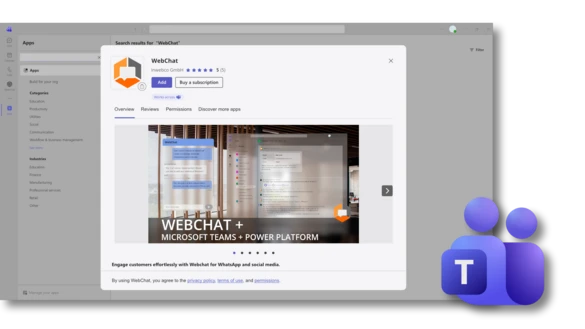
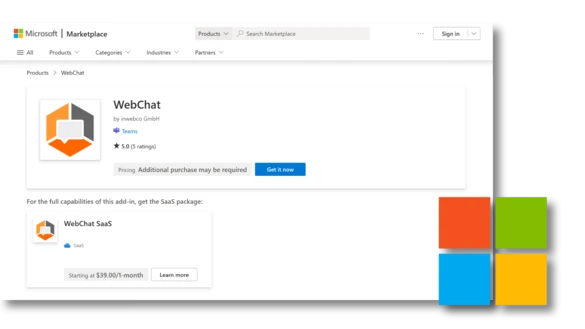

Launch additional workflows directly from your AdaptiveCards
WebChat + AI


