Step 1: Access to the Microsoft Teams Admin Center
Open your web browser and navigate to the Microsoft Teams Admin Center.
Log in with the administrator authorizations for your Microsoft Teams account.
If the message "Request approval" appears and you need to ask your IT administrator to approve the app, follow these steps:
Open your web browser and navigate to the Microsoft Teams Admin Center.
Log in with the administrator authorizations for your Microsoft Teams account.

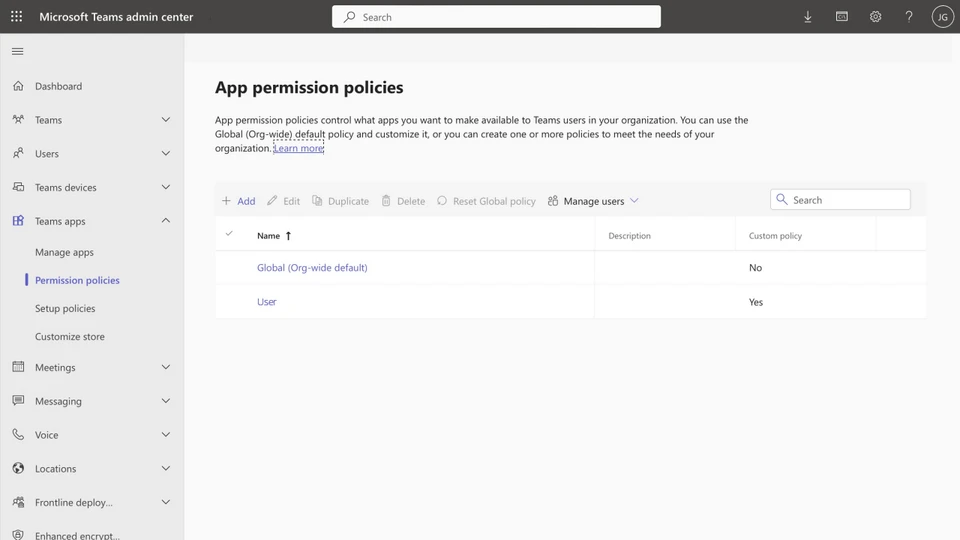
In the Microsoft Teams Admin Center, go to the "Permission policies" section.
Select the "Authorization policies" option.
Under "Third-party apps", select "Allow certain apps and block all others".

On the right-hand side, you will find a menu called "Add third-party apps". Click on it.
Search for WebChat and select it from the list.
Click on "Allow" and then on "Save" to apply the changes.