1. installation
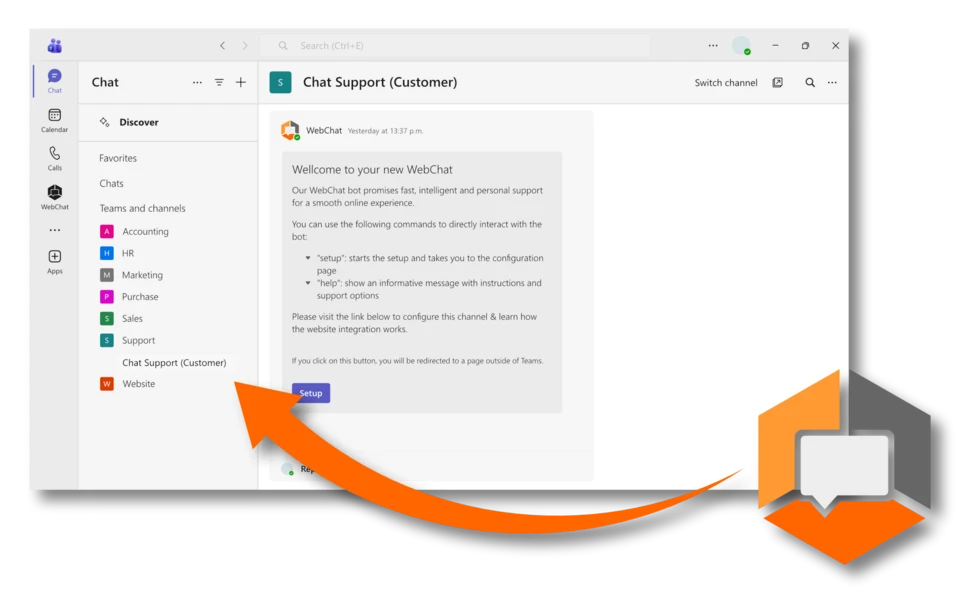
You can install WebChat in your Microsoft Teams using the sources listed above. With "Add to a team" you decide in which channel the WebChat should be inserted. You will receive and answer incoming chat requests in this channel.
Voeg WebChat toe in de Microsoft Teams Store, maak eenmalig verbinding - en je bent klaar. Geen kosten, geen verplichtingen.
Chats vanaf je eigen website landen meteen in het Teams-kanaal. Je kunt live zien hoe het werkt en of het bij je eigen workflow past.
De proefperiode eindigt automatisch. Als het je bevalt, kies je gewoon een licentiepakket - geen automatische verlenging, geen verrassingen.
You can install WebChat in your Microsoft Teams using the sources listed above. With "Add to a team" you decide in which channel the WebChat should be inserted. You will receive and answer incoming chat requests in this channel.
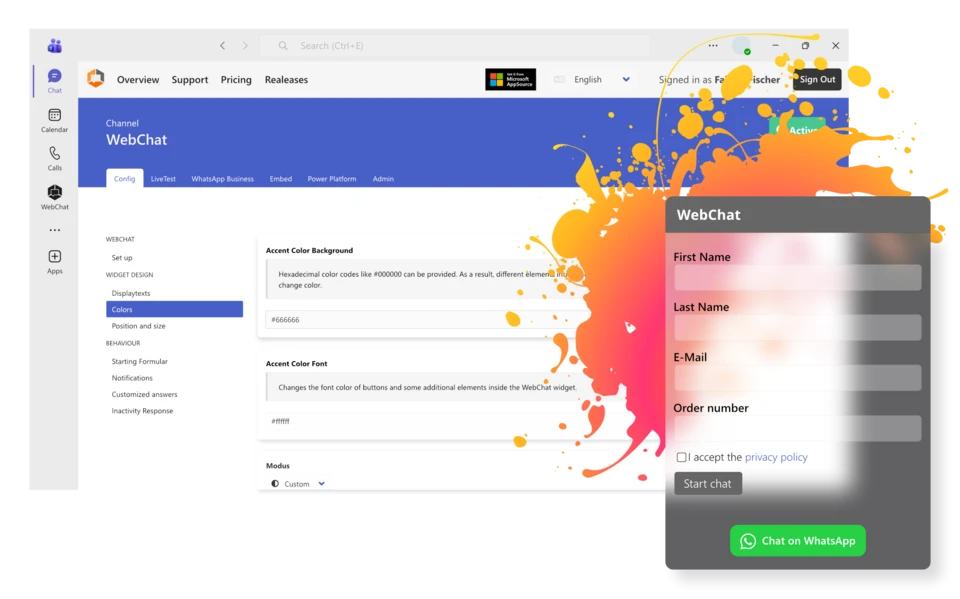
Customize the visual adjustments required for your company in the WebChat backend and configure WebChat according to your requirements. You can test the full range of functions at any time in the LiveTest area.
Simply copy the script and integrate it into the desired websites. Of course, you can also set up separate WebChats for several channels and thus, for example, place URL-dependent WebChats with different stored team channels on your websites. This allows different departments to be addressed directly from the website.