1. installazione
È possibile installare WebChat in Microsoft Teams utilizzando le fonti elencate sopra. Con "Aggiungi a un team" si decide in quale canale inserire WebChat. In questo canale riceverete e risponderete alle richieste di chat in arrivo.
Aggiungete WebChat nel Microsoft Teams Store, connettetevi una volta e il gioco è fatto. Nessun costo, nessun obbligo.
Le chat dal vostro sito web arrivano immediatamente nel canale Teams. Potete vedere dal vivo come funziona e se si adatta al vostro flusso di lavoro.
La prova termina automaticamente. Se vi piace, scegliete semplicemente un pacchetto di licenze: nessun rinnovo automatico, nessuna sorpresa.
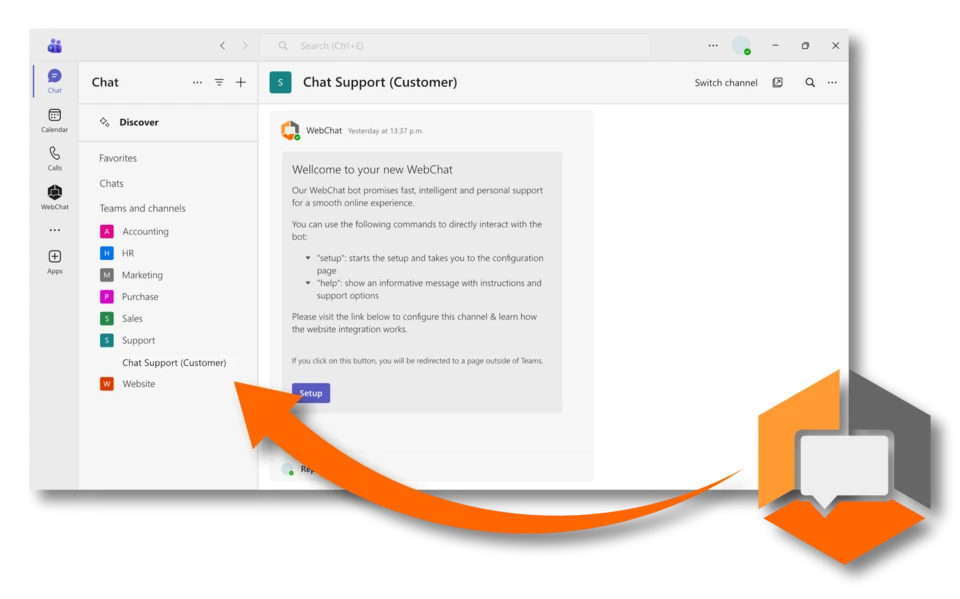
È possibile installare WebChat in Microsoft Teams utilizzando le fonti elencate sopra. Con "Aggiungi a un team" si decide in quale canale inserire WebChat. In questo canale riceverete e risponderete alle richieste di chat in arrivo.
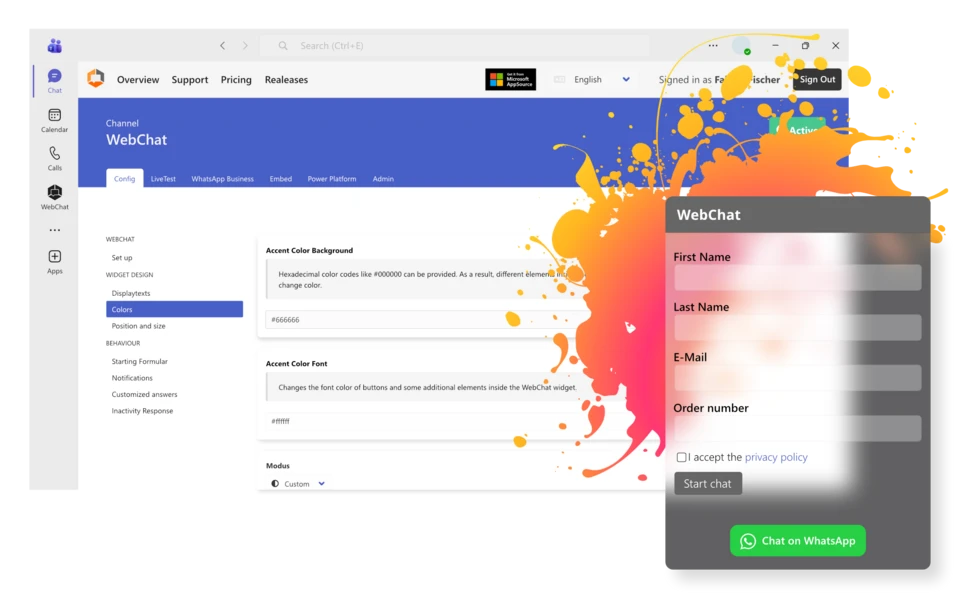
Personalizzate le regolazioni visive necessarie per la vostra azienda nel backend di WebChat e configurate WebChat in base alle vostre esigenze. È possibile testare l'intera gamma di funzioni in qualsiasi momento nell'area LiveTest.

È sufficiente copiare lo script e integrarlo nei siti web desiderati. Naturalmente, potete anche creare WebChat personalizzate per diversi canali e quindi, ad esempio, inserire nei vostri siti Web WebChat dipendenti dall'URL con diversi canali di team memorizzati. In questo modo è possibile rivolgersi a diversi reparti direttamente dal sito web.